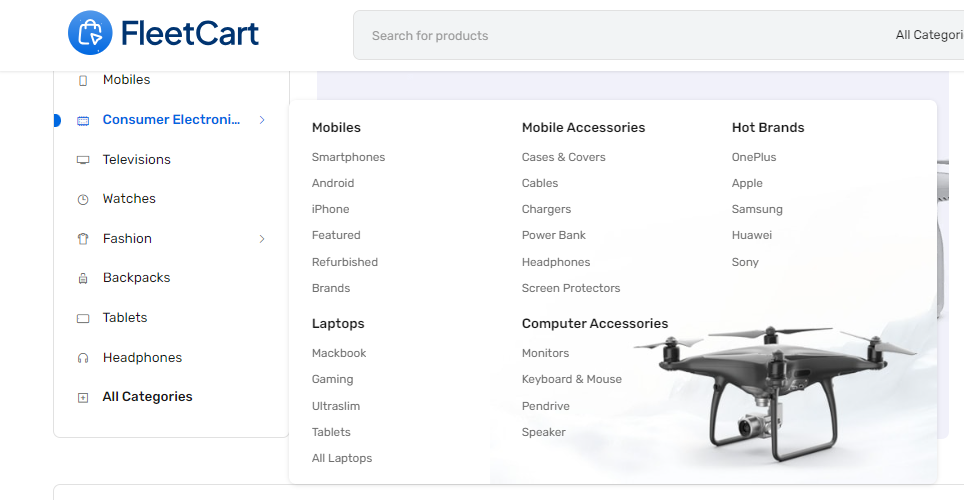
Appearance
Menus
You can customize your online store navigation menus from here. There are usually three types of menus, Primary Menu, Category Menu, and Footer Menu.
Create Menu
Navigate to Menus > Create Menu to create a new menu.
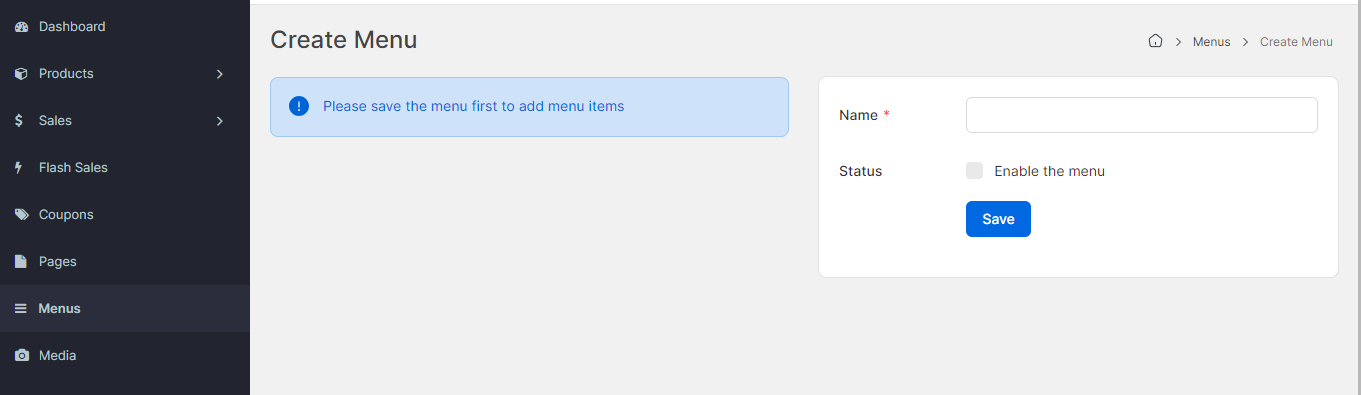
- Name (translatable): The name of the menu item.
- Status: Enable the menu.
Create Menu Items
After saving the menu you'll see a Create Menu Item button, press the button to create a menu item for the menu.
General
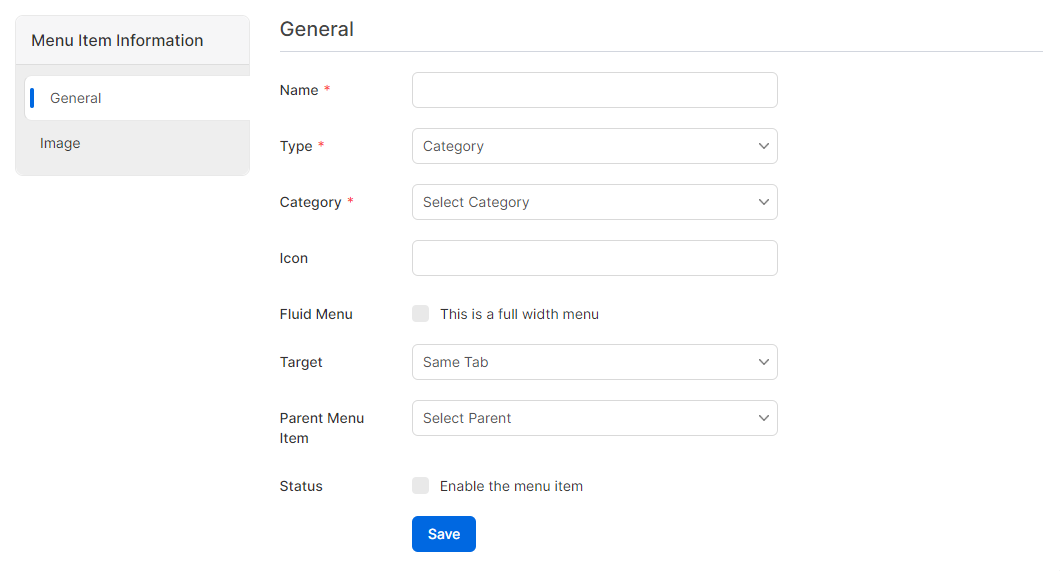
- Name (translatable): The name of the menu item.
- Type: A menu item can either be Category, Page, or URL type.
- Category: If you've selected menu item type to Category type, then you'll see a Category field.
- Page: If you've selected menu item type to Page type, then you'll see a Page field.
- URL: If you've selected menu item type to URL type, then you'll see a URL field.
- Fluid Menu: By default, menu items will be a drop-down menu. If you want to make a full-width menu check this box. You only need to check this box for the parent menu item.
- Target: Specify how the menu item will be opened.
- Parent Menu Item: Create a nested menu by specifying a parent menu item.
- Status: Enable the menu item.
Image
Image option allows you to set a background image for the mega menu. Uploading a background image here enhances the visual appeal and branding of your menu.
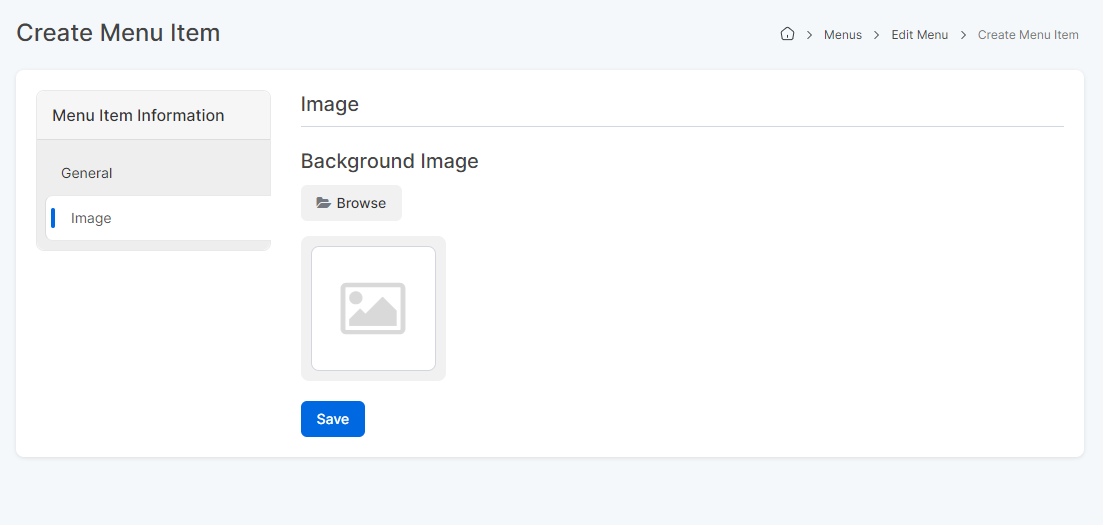
- Example